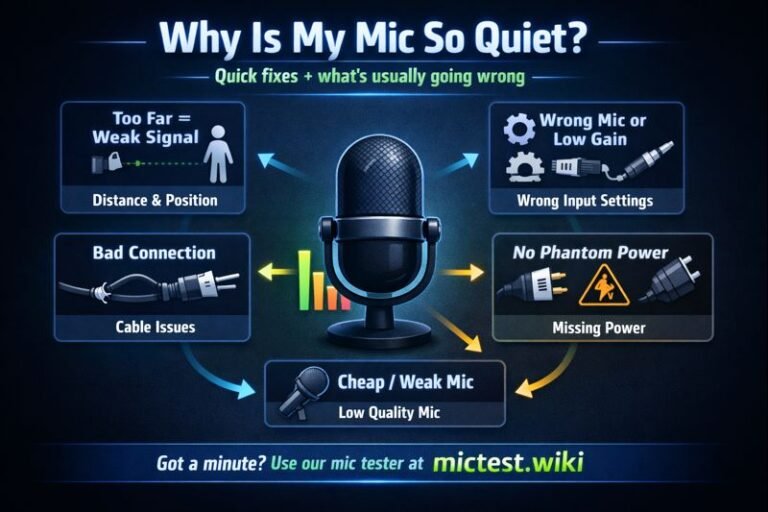
How to Fix Microphone Static, Hissing, and Background Noise
There is nothing that ruins a professional recording or a gaming session faster than a persistent background hiss. That “zzz” or “shhh” sound—often called static—can make even the most expensive microphone sound like a cheap toy. If your listeners are complaining that you sound like you’re standing next to a running vacuum cleaner, it’s time to clean up your signal.
At MicTest.wiki, we specialize in helping users identify the root cause of audio interference. Static isn’t always a sign of a broken mic; more often, it’s a result of electrical interference or poor software calibration. Here is how to silence the noise in five minutes or less.
Step 1: Isolate the Static with MicTest.wiki
Before you start buying new cables, you need to know if the static is “hardware noise” or “environment noise.”
-
Go to the MicTest.wiki homepage and start a recording.
-
Sit perfectly still and remain silent for five seconds.
-
Play the recording back.
-
If you hear a consistent electrical hum, it’s likely an electrical or hardware issue.
-
If you hear a “whooshing” sound, it’s likely ambient noise like a PC fan or AC unit.
1. Eliminate Electrical Interference (The “Dirty Power” Fix)
USB microphones are highly sensitive to the electrical “noise” inside your computer. If your mic cable is running next to a power strip or your PC’s power supply, it can pick up electromagnetic interference.
Try these quick hardware shifts: Move your mic cable away from other power cables. If you are using a USB hub, unplug the mic and plug it directly into a port on your computer’s motherboard (usually on the back of the tower). If you are on a laptop, try unplugging the laptop’s power charger and running on battery; if the static disappears, your charger is causing “ground loop” interference.
2. Manage Your Gain vs. Volume
One of the most common causes of hissing is “Gain Clipping.” Gain is not the same as volume; gain is the sensitivity of the microphone. If your gain is set to 100%, the microphone will try to pick up the sound of atoms moving in the air, resulting in a constant hiss.
The Golden Rule: Lower your gain and move the microphone closer to your mouth. By lowering the hardware gain to 50–70% and speaking 3–6 inches away from the capsule, you create a much higher “signal-to-noise ratio.” This means your voice is loud, but the background hiss remains silent. Check your levels on MicTest.wiki after every adjustment to find the point where the hiss disappears.
3. Disable “Microphone Boost” in Windows
Windows includes a feature called “Microphone Boost” that artificially amplifies the audio signal. While this makes you louder, it almost always introduces significant static.
To fix this: Open your Sound Settings and go to the Recording tab. Right-click your microphone and select Properties. Under the Levels tab, look for “Microphone Boost.” If it is set to +10dB or +20dB, slide it back down to 0.0dB. Use the “Input Volume” slider to compensate for the lost loudness instead.
4. Tackle Ambient Noise (Fans and AC)
Sometimes the “static” isn’t electrical at all—it’s just your room. Computer fans, air conditioners, and even distant traffic can create a “mucky” sound floor.
Use MicTest.wiki to test your room’s “silence.” If the visualizer bars are bouncing while you aren’t talking, your mic is picking up the room. To fix this without a professional studio, try “pointing” the back of the microphone toward the source of the noise (like your PC tower). Most microphones are “Cardioid,” meaning they reject sound coming from the back.
5. Use Software Noise Suppression
If you have tried the steps above and still have a slight hiss, it’s time to let AI help. Most modern communication apps have built-in “Noise Suppression.”
In Discord, ensure “Krisp” noise cancellation is toggled on. In Zoom, set your “Background Noise Suppression” to Medium or High. If you have an NVIDIA graphics card, download “NVIDIA Broadcast.” It uses your GPU to completely strip away static, fans, and even barking dogs from your audio stream in real-time.
Conclusion: A Clean Signal Starts with a Check
Static is the enemy of clear communication, but it’s an enemy you can defeat. By balancing your gain and isolating your cables, you can achieve “studio-quality” silence even on a budget setup. Always perform a quick soundcheck on MicTest.wiki before you start your next session to ensure your “hiss” hasn’t returned.