
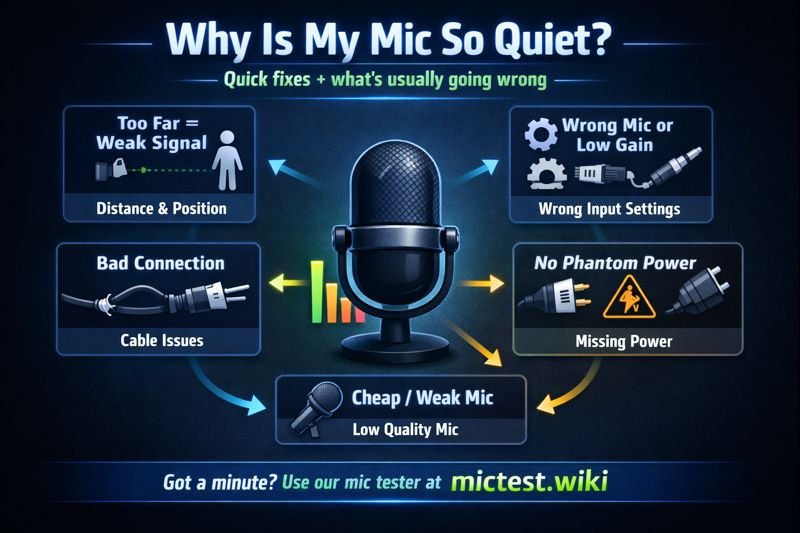
Why is My Mic So Quiet? 5 Ways to Fix Low Microphone Volume
There is nothing more frustrating than jumping into a high-stakes Zoom call or an intense gaming lobby only to be told the same thing: “We can’t hear you, your mic is too quiet.” You’ve checked the cables, you’re practically shouting, and yet the volume bars barely move. If you are struggling with low audio levels, you aren’t alone. “Low microphone volume” is one of the most searched audio issues globally.
At MicTest.wiki, we see thousands of users daily trying to diagnose this exact problem. In this guide, we’ll walk you through the most common culprits—from hidden software sliders to hardware limitations—and show you how to fix them.
Step 1: Confirm the Issue with a Mic Check
Before diving into complex settings, you need an objective baseline. Sometimes, one specific app (like Discord) is the problem, not your microphone.
-
Head over to the MicTest.wiki homepage.
-
Click “Start Test” and speak at your normal volume.
-
Check the Visualizer: If the waves are tiny and stay in the “dark green” or “gray” area even when you speak loudly, your system gain is likely too low.
-
Use the Playback Feature: Listen to your recording. Does it sound clear but distant, or is it distorted and faint?
1. Adjust Your Operating System Gain (The #1 Fix)
Most microphones do not run at 100% volume by default. Often, a Windows or macOS update can reset your “Input Levels.”
On Windows 10/11:
-
Right-click the Speaker Icon in your taskbar and select Sound Settings.
-
Under the Input section, ensure your correct microphone is selected.
-
Click on Device Properties (or the arrow next to your mic).
-
Look for the Input Volume slider. If it’s below 80, slide it up.
-
Pro Tip: Click “Additional Device Properties” -> “Levels” tab. If you see a Microphone Boost slider, try increasing it by +10.0 dB (but be careful, as this can add background hiss).
On macOS:
-
Go to System Settings > Sound.
-
Select the Input tab.
-
Select your microphone from the list.
-
Drag the Input Volume slider to the right. Watch the input level bar move as you speak to find the “Sweet Spot.”
2. Check for “Exclusive Mode” Conflicts
Sometimes, a specific application (like Skype or a specialized recording tool) takes “Exclusive Control” of your mic and lowers the volume for every other app.
-
In Windows Sound Settings, go to More Sound Settings > Recording Tab.
-
Right-click your mic and select Properties.
-
Under the Advanced tab, uncheck “Allow applications to take exclusive control of this device.”
-
Restart your browser and run a quick check on MicTest.wiki to see if the volume has stabilized.
3. Physical Placement and “The Wrong Side”
It sounds simple, but physical errors are incredibly common, especially with professional-looking USB microphones.
-
Side-Address vs. Top-Address: Popular mics like the Blue Yeti or Razer Seiren are “side-address.” This means you must speak into the side (the front with the logo), not the top. Speaking into the top of a side-address mic will result in audio that sounds quiet and muffled.
-
The 6-Inch Rule: If you are using a dynamic mic (like a Shure SM7B or a Samson Q2U), these are designed to be very close to your mouth. If you are more than 10 inches away, your volume will drop off significantly.
-
The Mute Switch: Check for a physical “Gain” knob on the microphone itself. Ensure it isn’t turned all the way down.
4. Hardware Limitations (The “Cloudlifter” Problem)
If you are using a professional XLR microphone (like a Shure SM7B or an Electro-Voice RE20) plugged into an audio interface (like a Focusrite Scarlett), you might find the mic is still too quiet even at max gain.
This is because some high-end mics are “gain-hungry.” They require a lot of power to produce a strong signal.
-
The Fix: You may need an inline pre-amp (like a Cloudlifter or FetHead) to boost the signal before it reaches your interface.
-
USB Check: If you are using a cheap USB headset, it may simply have a low-quality internal amp. In this case, software “Boost” is your only option.
5. App-Specific Settings (Discord, Zoom, Teams)
If your mic sounds great on MicTest.wiki but quiet on Discord, the problem is the app’s “Automatic Gain Control” (AGC).
-
Discord: Go to User Settings > Voice & Video. Turn off “Determine input sensitivity automatically” and manually adjust the slider.
-
Zoom: Go to Audio Settings and uncheck “Automatically adjust microphone volume.” This prevents Zoom from lowering your volume when you shout or laugh.
Conclusion: Test, Adjust, Repeat
A quiet microphone is usually a software communication issue, not a broken piece of hardware. By using the MicTest.wiki playback tool, you can hear the results of your adjustments in real-time without having to ask a friend “Can you hear me now?” a hundred times.
Is your mic still acting up? Stay tuned for our next “Wiki” entry on How to Fix Microphone Static and Hissing, or try our Instant Mic Check right now to see if your latest setting change worked!